
Quick Summary: Deleting chats in CrushOn AI requires accessing the chat interface, selecting the conversation you want to remove, and tapping the delete or trash icon. Users can delete individual messages or entire chat histories through the platform’s chat management settings. The process takes just a few taps and helps maintain privacy while managing conversation history.
Managing chat history on CrushOn AI is essential for privacy and keeping conversations organized. Whether it’s clearing outdated conversations or removing specific messages, understanding the deletion process helps users maintain control over their data.
The platform provides straightforward tools for chat management, but knowing exactly where to find these options saves time and frustration.
Understanding CrushOn AI Chat Management
CrushOn AI stores all conversations within the platform’s interface, allowing users to revisit past interactions with AI characters. But there’s a catch—chat histories can accumulate quickly, especially for active users.
The deletion feature exists primarily for privacy and organization. Removing chats doesn’t affect the AI character itself, only the conversation history stored under a specific account.
Here’s the thing though—once a chat is deleted, it’s typically gone for good. The platform doesn’t offer a recovery option for removed conversations, making it important to confirm deletion decisions before proceeding.
How to Delete Individual Chats in CrushOn AI
The process for removing specific conversations follows a simple pattern that works across most devices accessing the platform.
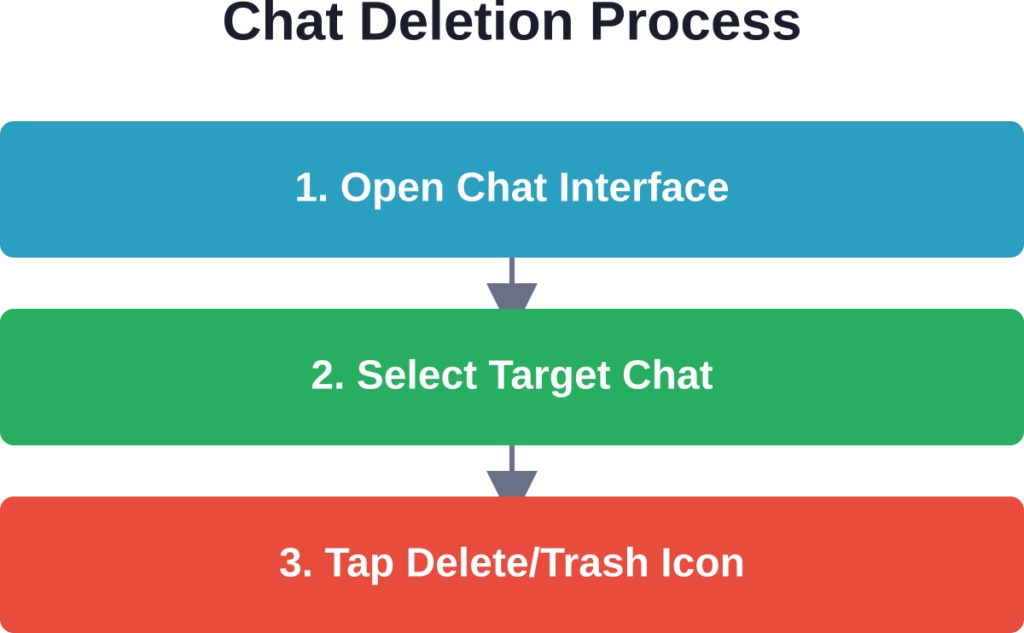
First, navigate to the main chat list where all conversations appear. This screen displays recent interactions with different AI characters, organized by most recent activity.
Locate the specific chat that needs deletion. On most interfaces, long-pressing or tapping the conversation brings up additional options.
Look for the delete icon—typically represented by a trash can symbol or a delete button. Tapping this icon prompts a confirmation dialog asking whether to proceed with deletion.
Confirm the action, and the chat disappears from the conversation list immediately. The AI character remains available for future conversations; only the history is removed.
Desktop vs. Mobile Deletion
The deletion process varies slightly depending on access method. Mobile users typically long-press on a chat to reveal options, while desktop users often see delete icons visible alongside each conversation.
Both methods achieve the same result, but the interface placement differs. Mobile interfaces prioritize touch gestures, whereas desktop versions offer more visible controls.
Find NSFW Content Faster With R34.app
AI chat platforms store conversations, while tag-based browsers focus on helping users find content. R34.app organizes posts by character, series, game, and keyword, making it easier to locate specific categories.
Looking for a Simpler Way to Find Content?
R34.app includes:
- searches by tag or keyword
- character and fandom categories
- content collected from multiple sources
👉 Visit R34.app to explore its tag-based browsing system.
Common Issues When Deleting Chats
Users occasionally encounter obstacles when attempting to remove conversations. Understanding these challenges helps navigate potential problems.
According to community discussions on Reddit, some users report difficulty finding the delete option on certain interface versions. The icon placement occasionally shifts with platform updates, requiring users to explore menu options more thoroughly.
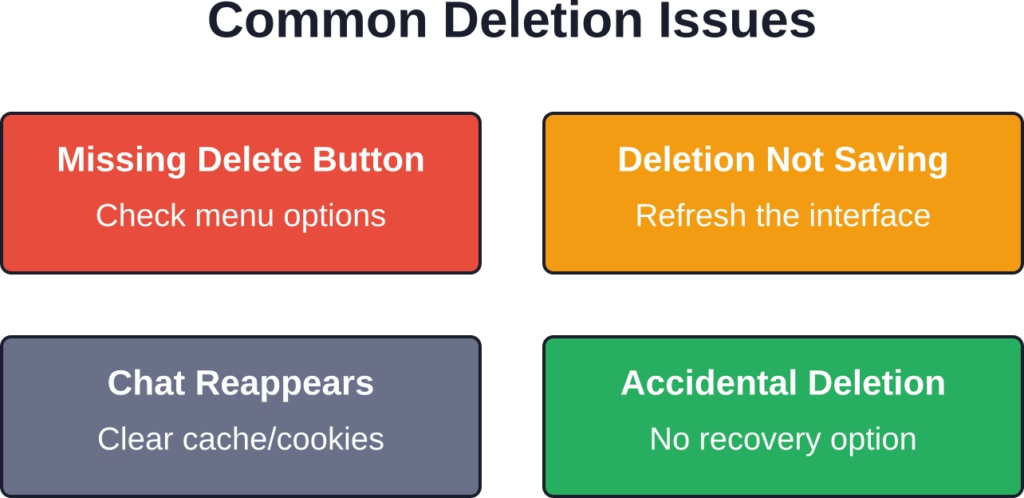
Chats that don’t delete properly often indicate a syncing issue. Refreshing the page or restarting the app typically resolves this problem, allowing the deletion to process correctly.
Another issue involves deleted chats reappearing after logging back in. This usually stems from browser cache or app data conflicts. Clearing the cache or reinstalling the app often fixes persistent deletion problems.
Privacy Considerations for Chat Deletion
Removing chats serves multiple purposes beyond simple organization. Privacy stands as the primary motivator for many users managing their conversation histories.
Deleted chats remove the visible record from the user interface, but understanding platform data retention policies provides complete privacy clarity. Terms of service documents typically outline how long server-side data persists after user deletion.
For users sharing devices or accounts—though not recommended—regular chat deletion prevents others from accessing private conversations. However, dedicated user accounts remain the most secure approach for maintaining conversation privacy.
Alternatives to Permanent Deletion
Not every situation requires permanent chat removal. The platform may offer archiving or hiding options that preserve conversations while removing them from the main view.
Archived chats typically remain accessible through a separate section, allowing retrieval if needed later. This middle-ground approach suits users unsure about permanently deleting conversations.
Real talk: archiving doesn’t exist on every platform version. Check the settings menu for available options beyond straightforward deletion.
Best Practices for Chat Management
Establishing regular maintenance habits keeps chat lists organized without requiring extensive cleanup sessions.
- Review and delete outdated conversations weekly or monthly
- Remove test chats immediately after creation
- Keep only meaningful conversations that might be referenced later
- Use descriptive character selections to identify chats easily
Setting a deletion schedule prevents chat lists from becoming overwhelming. Active users benefit most from consistent maintenance routines.
Consider the value of each conversation before deletion. Some interactions contain creative content or useful information worth preserving, while others serve no purpose after completion.
Frequently Asked Questions
Can deleted chats be recovered on CrushOn AI?
No, the platform doesn’t currently offer a recovery feature for deleted chats. Once a conversation is removed, it’s permanently deleted from the user interface. This makes confirming deletion decisions important before proceeding with removal.
Does deleting a chat remove the AI character from my account?
No, deleting a chat only removes the conversation history. The AI character remains available for future interactions. Users can start fresh conversations with the same character anytime after deleting previous chat histories.
How many chats can be deleted at once?
The batch deletion limit depends on the interface version and any platform restrictions. Most implementations allow selecting and deleting multiple chats simultaneously through selection mode, though extremely large batches might require processing in groups.
Will the other person know if I delete our chat?
CrushOn AI involves conversations with AI characters, not other human users. Since interactions occur with artificial intelligence, no notification system exists for chat deletion. The action only affects the individual user’s account and conversation history.
What happens to subscription data when chats are deleted?
Deleting chats doesn’t affect subscription status or account settings. Conversation history and account configuration operate independently. Subscription tiers, payment information, and user preferences remain intact when removing chat histories.
Does clearing browser cache delete CrushOn AI chats?
Clearing browser cache removes locally stored temporary data but doesn’t delete server-side chat histories. Conversations remain accessible after cache clearing since the platform stores chat data on its servers. However, cache clearing can resolve syncing issues related to chat deletion.
Maintaining Control Over Chat History
Regular chat management keeps the CrushOn AI interface clean and organized. The deletion process takes just seconds per conversation, making it an easy habit to incorporate into platform usage.
Understanding where deletion options live within the interface eliminates frustration when cleanup becomes necessary. Whether removing individual chats or clearing multiple conversations, the tools exist within the platform’s native functionality.
Privacy concerns make chat deletion particularly valuable for users sharing devices or accessing the platform from multiple locations. Consistent maintenance ensures conversation histories don’t accumulate indefinitely.
The short answer? Deleting chats on CrushOn AI requires just a few taps: access the chat list, select the target conversation, and tap the delete icon. Confirm the action, and the chat disappears immediately.
Take a few minutes today to review and clean up outdated conversations. A well-organized chat list makes finding important conversations easier and keeps the interface running smoothly. Check the official CrushOn AI documentation for current feature availability and any platform updates related to chat management tools.