
So you’ve been chatting on Candy AI, your virtual companion sends you an image that hits just right, and now you’re thinking – how do I keep this? If you tried right-clicking and came up short, don’t worry. You’re not the only one. Candy AI doesn’t exactly put a big “Download” button under those generated selfies or roleplay pics, but that doesn’t mean you can’t save them.
This guide walks you through a couple of easy ways to grab those images straight from your browser. No sketchy apps, no weird plugins, just a bit of clicking, maybe a peek at the code if you’re feeling fancy. Let’s get into it.
Where Do Candy AI Images Actually Go?
First off, let’s clear up how Candy AI handles your visuals.
Unlike random image generators that spit out downloads right away, Candy AI keeps things personal. Images generated during chats are stored within your account and are not publicly accessible. They remain available as long as your account is active.
You’ll typically find them in two places. The first is inside the chat thread where the image was generated. The second is in your Collection tab if you bookmarked or saved it manually.
These aren’t public. They’re only viewable when you’re logged in and active on your account.
Looking for a Broader Collection? Here’s Where We Come In
If you’re exploring visual content and want something beyond what Candy AI generates in private chats, we’ve built a space designed exactly for that. At R34.app, we make it easy to search, filter, and discover Rule 34 content from across the internet in one clean, accessible interface.
We’re not trying to compete with platforms like Candy AI. What they offer is intimate and personalized. What we offer is wide open and search-driven. Think of us as the place to go when you’re looking for content based on characters, games, anime, or tags like Genshin Impact, Overwatch, or Five Nights. You can jump between top posts, trending images, animated content, and more. Everything’s built around fast access and a clean visual layout, without the clutter.
We don’t generate the images ourselves. Instead, we help you find what already exists out there in the wild. If you’re someone who enjoys collecting or browsing AI visuals and wants to go deeper into the fandom side of things, our site gives you the structure and tools to do it. No logins, no awkward UI, just tags, filters, and fast results.
Two Ways to Save Images from Candy AI (Without Extra Tools)
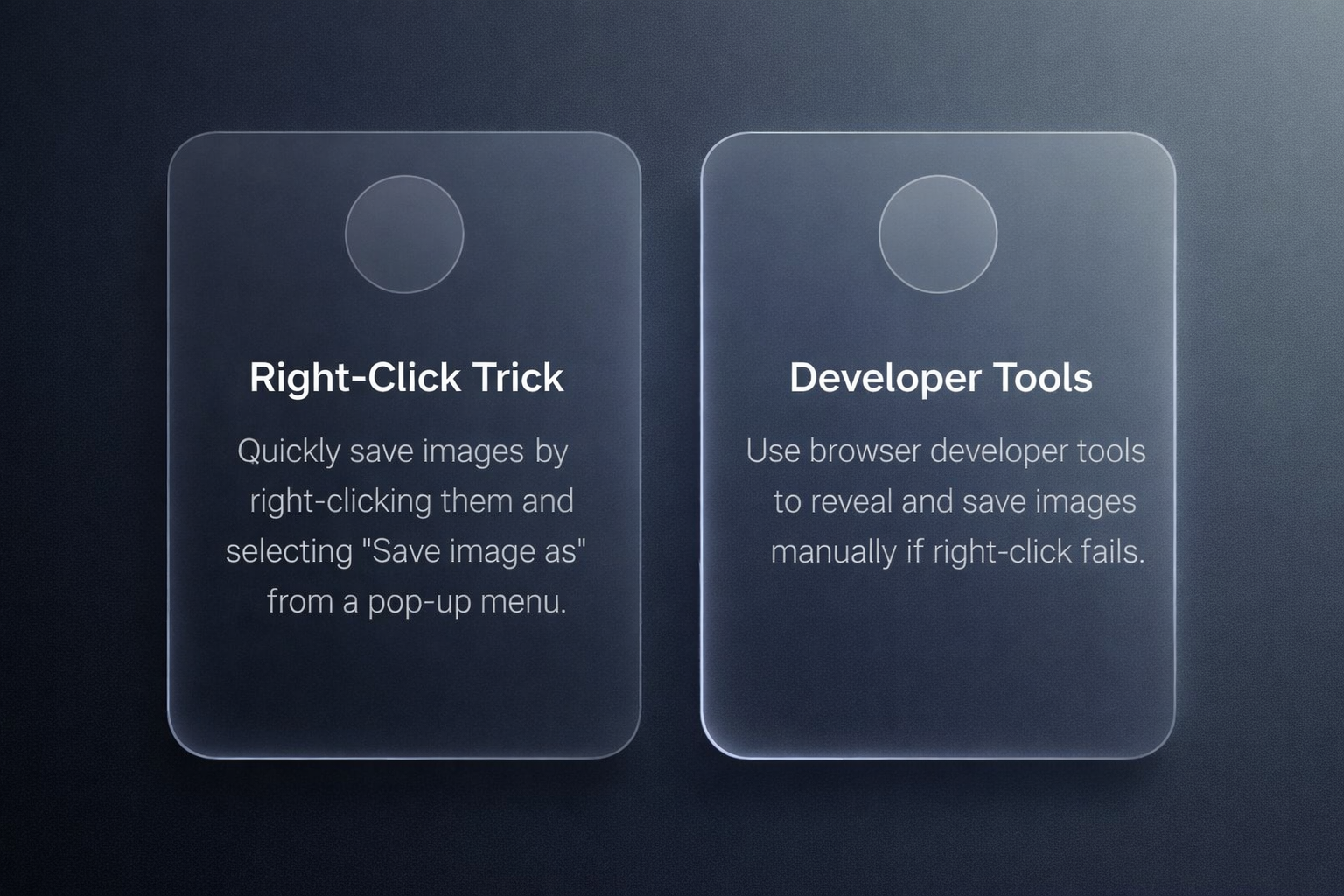
Candy AI doesn’t hand out images like a traditional gallery app, but that doesn’t mean you’re stuck staring at them through the chat window forever. If you’re using a browser, especially on a desktop, there are a couple of solid ways to save the visuals your AI companion sends you.
Whether you prefer the simple right-click route or you’re comfortable digging into your browser’s code, both methods let you keep your favorite images without relying on third-party apps or sketchy downloads.
Method 1: The Right-Click Trick (Works Most of the Time)
If you’re using a desktop browser like Chrome, Firefox, Edge, or Safari, this is the easiest route. No coding, no tools, just a basic right-click and a few steps.
Here’s how to do it:
- Log into Candy AI: Make sure you’re signed in to the account where the image was created.
- Open the correct chat session: Go to the conversation or Collection tab where the image lives.
- Find the image you want to save: Scroll until you see the exact image you’re after.
- Right-click on the image: If allowed, you’ll see a menu pop up.
- Click “Open image in new tab”: This step helps you get the full-size version. Avoid saving from the thumbnail directly.
- In the new tab, right-click again and hit “Save image as”: Choose your folder and save it to your computer.
And that’s it. In most cases, that’s all you need. Quick, quiet, and done.
Why it might not work:
- Some browsers block direct downloads from secured dashboards.
- The image might be layered inside the site’s interface, preventing direct clicks.
- Candy AI may roll out updates that disable image-clicking in the chat UI.
When that happens, it’s time for Plan B.
Method 2: Using Developer Tools (When Right-Click Fails)
Okay, so the easy method didn’t work. Don’t panic. Every browser has developer tools — kind of like peeking under the hood of a website. It’s not as scary as it sounds, and you don’t need to be a coder to do this.
Step-by-step guide for Chrome (also works on Firefox, Edge, etc.):
- Open Developer Tools: Right-click anywhere outside the image. Choose “Inspect” or “Inspect Element. Or use the shortcut. For Windows, it is Ctrl + Shift + I, for Mac, it is Cmd + Option + I.
- Activate the Element Picker: Click the little cursor icon (top-left corner of the DevTools panel). Shortcut – Ctrl + Shift + C (or Cmd + Shift + C on Mac). Now click directly on the image you want to save.
- Find the Image URL: Once you click the image, the HTML code will highlight. Look for a tag like this <img src=”https://cdn.candy.ai/…”>. That src link is your image. Double-click the URL to highlight it, then right-click and copy it.
- Open the Image in a New Tab: Paste the copied URL into a new browser tab. The image should load on its own.
- Right-click and save: Now just right-click the image and hit “Save image as.”
Done. You’ve just manually pulled the full-resolution image directly from the site.
Important Notes About Candy AI’s Terms of Service
Before you go grabbing every image you see, there are a few things to keep in mind. Candy AI, like most AI platforms, has rules around how their content is used. And yeah, they’re serious about it.
What you can do: Download images that you generated in your own private chat. Keep them for personal use (view offline, store in a private folder, etc.).
What you can’t do: Publish images in books, games, websites, and more. Use them in commercial projects, videos, or apps. Sell, remix, or claim them as your original work. Access or download content from someone else’s account.
Straight from their terms: “Our Services are intended and made available for personal, non-commercial use only.”
In short: If it’s yours, and it stays private, you’re fine. If you monetize content or publish material generated from Explore characters, you may be violating Candy AI’s policies, which can result in account restrictions or termination. However, images are licensed strictly for personal, non-commercial use only; avoid any sharing to comply with the platform’s policies.
Quick Tips to Stay Organized
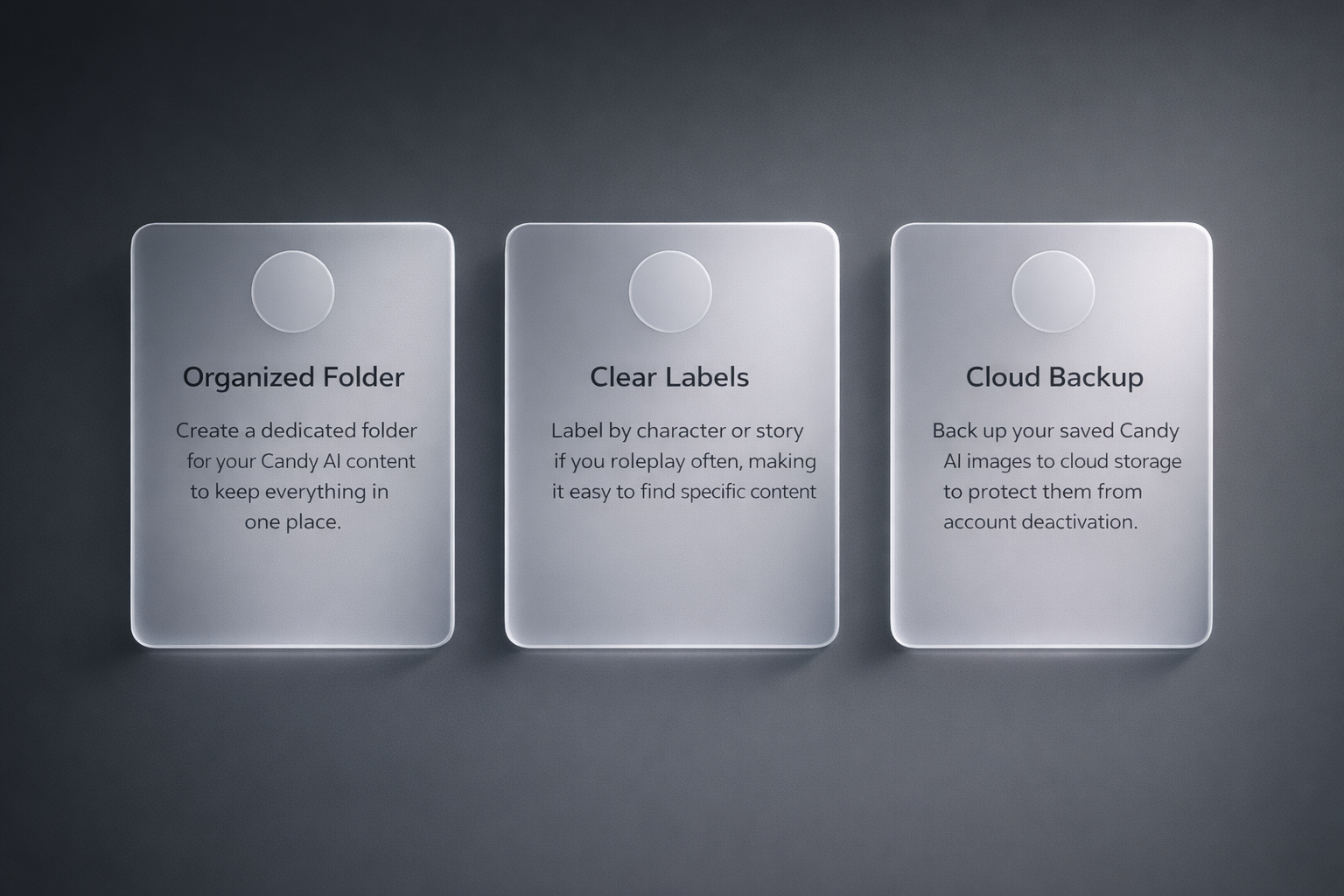
If you plan on generating a lot of content and saving some of it, a little planning goes a long way. Here’s how to avoid losing track of your favorite images:
- Create a dedicated folder on your device for Candy AI content.
- Label by character or story if you do a lot of roleplay.
- Take screenshots of the chat context if it helps you remember why you saved it.
- Back up your saved images to cloud storage if your account ever gets deactivated.
What Happens If You Delete Your Candy AI Account?
This part’s easy to overlook but important: once your account is deleted, you lose access to everything tied to it, including generated images.
They’re not stored in some central archive that you can come back to later. If the account is gone, so are your visuals.
So before deleting your account:
- Go through each chat and Collection tab.
- Download everything you care about.
- Double-check that you have backups if needed.
Can You Use These Methods on Mobile?
Short answer: not really. Most mobile browsers don’t support right-clicking, and Developer Tools aren’t available by default.
If you want to download images using these methods, you’ll need to:
- Use a desktop or laptop.
- Or log in through a mobile browser that supports “Desktop Site” view, though even that’s hit or miss.
Why Candy AI Doesn’t Just Offer a Download Button
While Candy AI doesn’t explain the absence of a download button, it may be due:
- A privacy feature (to keep images tied to the logged-in session).
- A way to discourage public reposting or misuse.
- A design choice to make things feel more like a live experience, not just content farming.
Still, it’d be nice if they gave users an easy save option in the dashboard – maybe that’ll come with a future update.
Final Thoughts
Downloading images from Candy AI isn’t rocket science, but it does come with a few quirks. You’re working within a platform that was designed more for experience than exporting, so the fact that there’s no native download button makes sense in context. Still, it’s your chat, your visuals, your moment, and you should be able to save it.
Just don’t forget the boundaries. What happens in your dashboard should stay there. Use the tools we covered to grab what you need, but keep it personal. If you respect the platform’s rules, you’ll keep access, avoid headaches, and make the most of what Candy AI has to offer.
FAQ
Can I download Candy AI images directly from the site?
Not directly. There’s no built-in “Download” button. But you can save them using your browser’s right-click tools or through Developer Tools on desktop.
Are Candy AI images public or private?
Images are private and accessible through your account. Other users cannot view your generated content.
Is it okay to share my downloaded images online?
Candy AI does not allow commercial use of generated content. However, you may share images created using the ‘Create My AI’ feature on your personal, non-monetized social media accounts.
What happens to my images if I delete my account?
Images are private and accessible through your account. Other users cannot view your generated content. Download what matters before you close your profile.
Can I save Candy AI images on mobile?
Not easily. Most mobile browsers don’t support image saving the same way desktops do. You’ll need a laptop or desktop for the methods in this guide to work smoothly.
Does using Developer Tools break any rules?
No, as long as you’re accessing images from your own account and using them privately. Just don’t try to scrape or modify site data outside what’s already visible to you.
Is there an alternative if I want curated content instead of generated chats?
Yes. If you’re into browsing existing Rule 34-style content by tag or fandom, R34.app is a solid option. It’s search-focused and built for fast, visual discovery.