
If you’ve tried searching for Candy AI and ended up with clones, dead links, or sketchy apps – yeah, that’s normal. The platform’s not always where you’d expect it, especially on Android. Some users get confused before they even get in. Others install the wrong thing entirely. So here’s the simple version: where to actually find Candy AI in 2026, what works on your device, and how to skip the noise.
Before You Download – What You Should Know First
Candy AI isn’t a one‑tap install from an app store. On iPhone, Android, and desktop, access works the same way: through the browser at candy.ai. There is no native iOS or Android app, and no official App Store listing under any name.
Also worth knowing: there are a lot of fake or lookalike apps floating around, especially on Google Play. They mimic the name, the icon, even the screenshots – but they’re not Candy AI. The official platform exists only on candy.ai, with an optional add‑to‑home‑screen setup for a more app‑like feel. Everything else should be ignored.
Candy AI Download Options by Platform
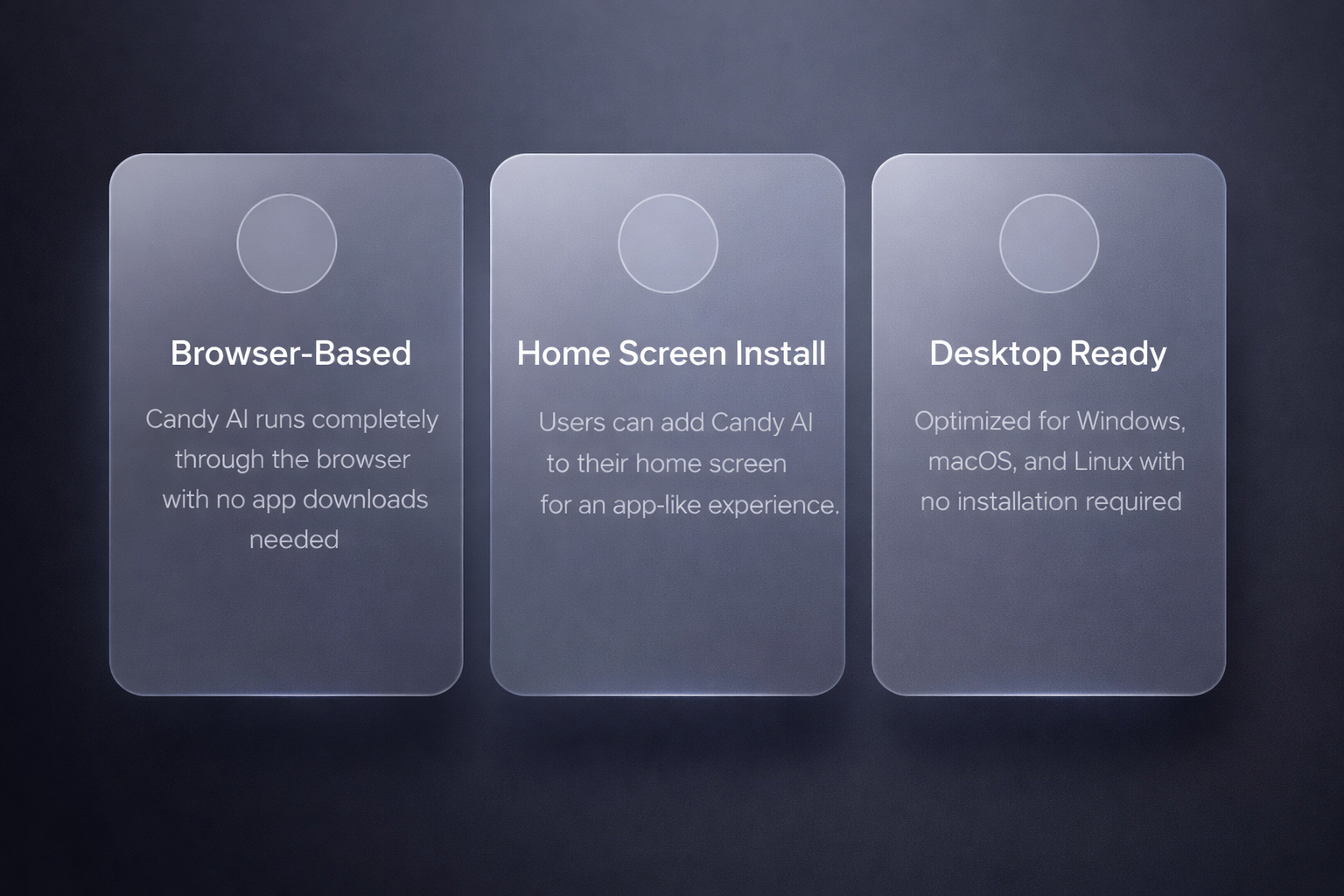
Candy AI doesn’t come as a traditional app. There’s no official download on the App Store or Google Play, and no APK floating around from the developers. Instead, it runs entirely through the browser – on iOS, Android, and desktop – with the option to install it as a shortcut for a more app-like feel. That’s it. No app installs, no guessing. Just open candy.ai, log in, and you’re in. Here’s how that plays out in 2026, depending on what device you’re using.
1. iPhone and iPad (Browser Access + PWA Setup)
There is no native iOS app for Candy AI. You won’t find anything official in the App Store – not under “Candy AI,” not under any other name. All access on iPhone and iPad happens in the browser, typically Safari.
That said, Candy AI does support Progressive Web App (PWA) functionality. This means you can add it to your home screen, launch it full-screen like a regular app, and even get push notifications once you grant permission. How to set it up:
- Open Safari on your iPhone or iPad
- Go to candy.ai
- Log in or create a free account
- Tap the Share icon and choose “Add to Home Screen”
- Give it a name (like “Candy”) and confirm
From there, it’ll sit on your home screen like any app. Tap to open it full-screen, no browser UI, and keep chatting without friction. No install. No App Store. Just direct access.
2. Android Phones and Tablets (Browser Access Only)
Android users don’t get an app either. Candy AI isn’t on Google Play, and anything that pretends to be is either fake, broken, or straight-up shady. There’s also no APK provided officially – no test builds, no private downloads.
What you do get is full functionality right in the browser. Chrome is recommended, but any modern browser will work. To start using it:
- Open Chrome or Firefox
- Go to candy.ai
- Log in or sign up
If you want that app-like feel, you can add it to your home screen:
- Tap the three-dot menu in your browser
- Choose “Add to Home Screen”
- Confirm and launch it like an app
Push notifications may be limited or unavailable, depending on browser and system support, but it keeps things smooth, fullscreen, and easy to access.
3. Desktop (Windows, macOS, Linux – Best Stability)
The desktop version of Candy AI is where the platform really shines – especially if you’re doing longer chats, generating images, or using voice features. There’s no app to install and no setup needed. Here’s how to use it:
- Open any modern browser (Chrome is most stable)
- Go to candy.ai
- Log in and start chatting
You get:
- Full chat functionality with memory
- Access to NSFW modes (if enabled)
- Voice and image generation
- Smoother multitasking (tabs, copy/paste, multitabs)
- Sync across devices – pick up where you left off on mobile
If you’re planning deep convos or just want the most stable experience, desktop’s the way to go. No updates, no installs, just a clean interface that runs reliably in your browser.
Rule 34 App: Fast NSFW Browsing Without the Layers
Rule 34 App is a web-based tool for browsing raw NSFW content pulled directly from Booru sources like Gelbooru, Paheal, Danbooru, and e621. We don’t host anything ourselves. The app just makes it faster and cleaner to search tags, view results, and filter media – especially on mobile, where most Booru sites feel broken. It’s built to load fast, work across devices, and skip everything that gets in the way.
You won’t find user accounts, chat features, or character creation here. This isn’t that kind of platform. What you get is direct access to the content – including trending posts, animated formats, and whatever niche tags you’re into. If something’s blocked in your country, Premium adds media proxying to get around it.
We don’t do support tickets or shiny updates. Everything runs through Discord, where people report bugs, suggest features, or just drop weird tag requests. We’re also on Twitter, Mastodon, Bluesky, but Discord is where things actually happen. No hype. No filler. Just a stripped-down NSFW browser that keeps working.
Browser vs PWA – What’s the Difference in Candy AI Experience?
Candy AI works the same on paper no matter where you use it – same characters, voice, visuals, memory, NSFW features. But in practice, the way it runs depends on how you access it. Here’s what actually changes between the PWA (added to home screen) and the plain browser version in 2026.
Notifications and Background Behavior
In the PWA (added to home screen on iPhone):
- Sends push notifications for AI replies (after granting permission)
- Keeps sessions more stable when switching apps compared to plain browser tabs
- May occasionally require re-login if the tab is closed for a long time
In the plain browser (without adding to home screen):
- No reliable push notifications (After adding as PWA, push notifications become available on supported browsers and devices)
- Idle tabs can log you out
- Works fine for short chats, less ideal for day-long sessions
Voice Features and Microphone Access
Both platforms support voice messaging, but the smoothness varies.
- PWA on iOS: Mic access requires permission (may reprompt in new sessions or after browser restart). Record and send voice notes works smoothly once granted, but less persistent than fully native applications.
- Web: Mic works, but expect permission popups almost every time. Background voice can get glitchy on Android, depending on browser and device.
Updates, Load Time, and Stability
- Web version: Always up to date, no downloads needed. But it relies on your connection and hardware – can be a bit sluggish on older phones or slow Wi-Fi.
- PWA version: Always up-to-date automatically (no separate updates or App Store needed). Launches from home screen icon and feels stable on modern devices and connections.
System Integration and Home Screen Access
The PWA offers partial integration with iOS:
- Home screen icon and full-screen mode
- Push notifications (with permission)
- Background handling depends on browser and iOS settings
- No deep native features like Face ID login or full app switcher integration”
The web version acts like an app if you add it to your home screen, but:
- No system-level gestures
- No true multitasking
- No biometric login or OS notifications
Sync and Consistency Across Devices
This part’s simple:
- All your data stays synced
- Switch between desktop, mobile browser, or app anytime
- Characters, chat history, and settings are always up to date
Bottom line: the plain browser gets you in fast with nothing to install. The PWA (added to home screen) feels cleaner and more stable if you’re a heavy user. Pick what fits your habits – both do the job.
Common Issues and Fixes
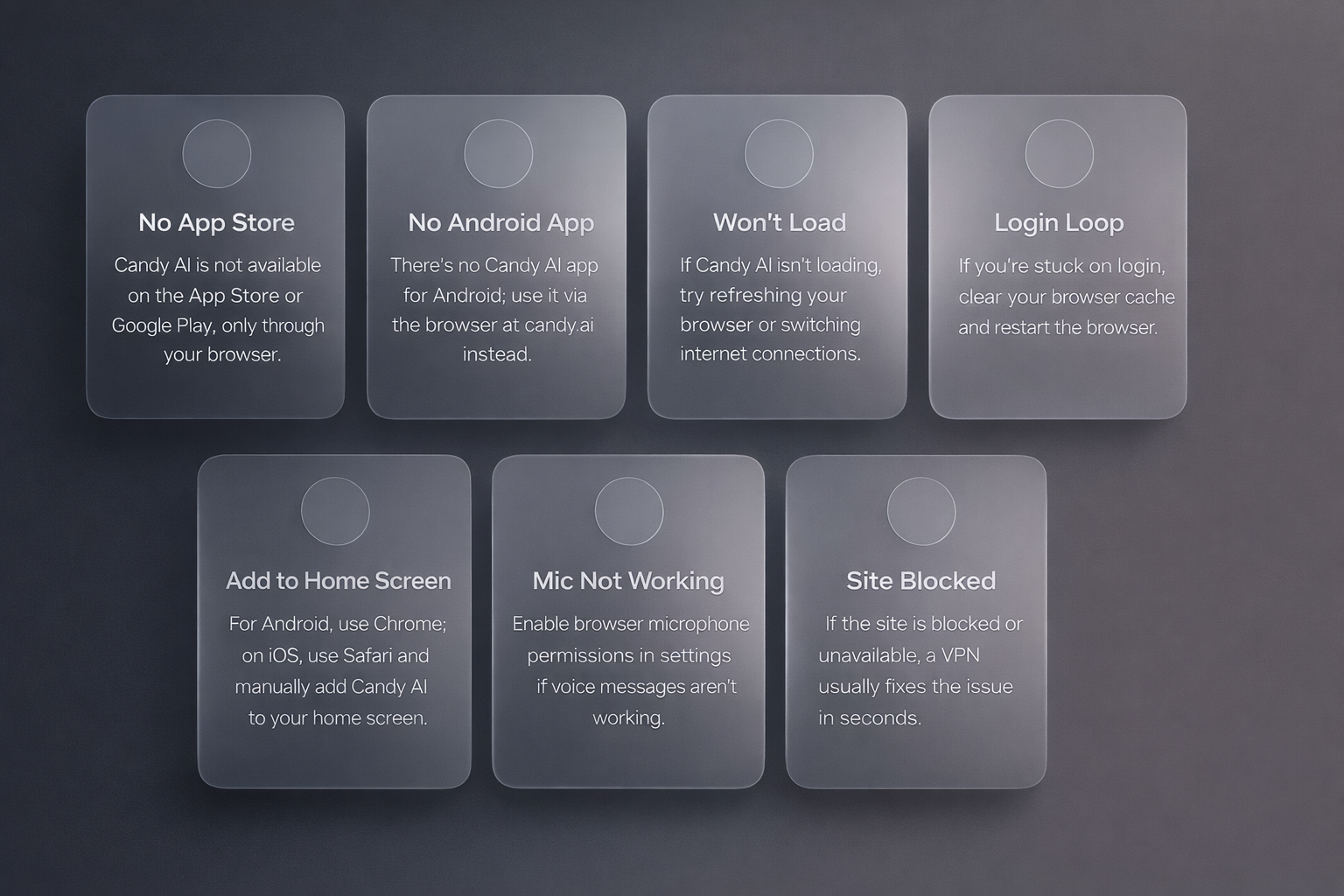
Candy AI usually runs fine once you’re in. The real headaches tend to happen before that – when people are trying to find the app, get it running, or figure out why something’s acting weird. Here’s what goes wrong most often, and how to fix it without wasting time.
1. Can’t Find Candy AI in the App Store
Candy AI does not have a native iOS or Android app. You won’t find it in the App Store or Google Play under any name. Official access always starts at candy.ai through your browser.
2. No App on Android
That’s not a bug – there’s no official Candy AI app on Google Play. Anything you see there is either unrelated or a fake. If you’re on Android, just use the browser version at candy.ai. It works the same and doesn’t need to be installed.
3. App Won’t Load or Site Is Blank
This could be a temporary glitch on Candy AI’s end or something local. Try refreshing the page, switching from Wi-Fi to mobile data (or vice versa), or using a different browser. Chrome tends to be the most reliable.
4. Stuck on Login or Page Keeps Looping
That’s usually a browser issue – corrupted cookies or a bad cache. Clear your browser history, close everything, and try again. If you’re using Safari and it’s still looping, try Chrome or Firefox instead.
5. No “Add to Home Screen” Option
Not all browsers support this feature. If you’re on Android, use Chrome. On iOS, use Safari. Make sure the page has fully loaded, then open your browser menu and look for Add to Home Screen manually.
6. Microphone Not Working for Voice Messages
Check your browser’s microphone permissions. Some browsers forget mic access between sessions, so don’t be surprised if it keeps asking. Re-enable it when needed, and it should work fine.
7. Site Blocked or Doesn’t Open in Your Country
Candy AI isn’t blocked by default, but some ISPs or networks interfere. If the site doesn’t load at all, try a VPN – usually fixes the issue in a few seconds.
Most of these issues are temporary or device-specific. If you’re still stuck, check Candy AI’s official Discord or support links. Odds are, someone else already ran into it and posted a fix.
Conclusion
If you’re trying to get started with Candy AI in 2026, keep it simple: there’s no app to download, no store to browse, and no APK to sideload. Just go to candy.ai in your browser – that’s it. iPhone and Android users can add it to their home screen for an app-like setup. Desktop users don’t need to do anything special; everything runs straight from the site.
Ignore the fake apps, the shady clones, and anything asking you to “unlock premium” outside the official platform. The real version works across all devices, syncs your chats automatically, and doesn’t need a flashy install button to get going. It’s fast, direct, and it does exactly what it promises – no layers, no noise.
FAQ
Is there a real Candy AI app for Android?
Nope. There’s no official Android app in Google Play. If you’re on Android, just use your browser and go to candy.ai. You’ll get full access there.
Is there an official Candy AI app on iOS?
No. Candy AI does not have a native iOS app. Access is available only through the browser at candy.ai, with an optional add‑to‑home‑screen setup.
Do I need to pay to use Candy AI?
Not to start. There’s a free tier that lets you test the basics – chatting, character creation, etc. But if you want access to NSFW features, more messages, or image generation, you’ll hit a paywall.
Can I install it like an app on Android anyway?
Yes, kind of. Use Chrome, open candy.ai, and tap “Add to Home Screen.” It’ll run fullscreen like an app, but it’s technically still the browser version.
Why are there so many lookalike apps?
Because “AI companion” apps are trending hard, and shady devs know how to name things for clicks. Just stick to the official site at candy.ai. Everything else is noise.
Does Candy AI track anything?
You still need an account, and cookies are in play like with any modern site. But there’s no login required just to poke around. If you’re concerned, don’t use shared devices, and clear your history when you’re done.