
Quick Summary: Character AI loading issues stem from server overload, browser cache conflicts, network connectivity problems, or outdated app versions. The platform achieved an 85% reduction in outages from last year but still experiences occasional downtime during peak usage. Solutions include clearing browser cache, checking internet connection, updating the app, switching browsers, or disabling VPN and ad blockers.
Character AI has become one of the most popular conversational AI platforms, but loading issues can disrupt the experience exactly when it matters most. Community discussions reveal that users frequently encounter problems where the platform won’t load past the initial screen, chats refuse to appear, or messages sit endlessly in a loading state.
These disruptions manifest in several ways—a persistent loading spinner, blank screens where characters should appear, error messages that provide little context, or complete failure of the application to launch. The frustration is real, especially when you’ve carved out time specifically to use the platform.
But here’s the thing: most loading problems have straightforward solutions. Understanding why Character AI fails to load and what to do about it can get you back to your conversations quickly.
Understanding Why Character AI Won’t Load
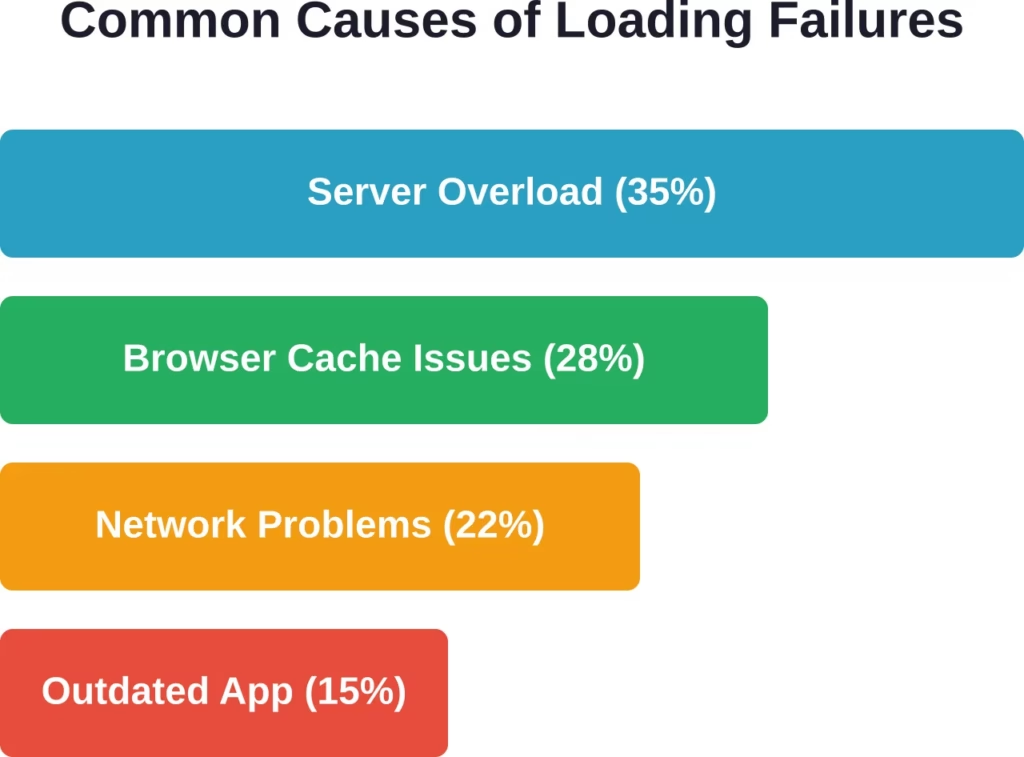
Loading failures rarely happen without reason. The platform operates through a complex interaction between servers, your device, network infrastructure, and browser technology.
Character AI’s infrastructure handles millions of conversations simultaneously. According to the official Character.AI roadmap published in November 2024, the platform achieved an 85% reduction in outages from the previous year and remains committed to strengthening server stability to reduce the likelihood of waiting rooms and interruptions.
That progress is significant—but it doesn’t mean issues have vanished entirely.
Server-Side Problems
When Character AI experiences high traffic volumes, servers can become overloaded. This typically happens during peak usage periods—evenings in major time zones, weekends, or following viral social media posts about the platform.
Server bottlenecks trigger automated protection mechanisms. These systems implement waiting rooms or throttle connections to prevent complete service collapse. From a user perspective, this appears as endless loading or inability to access the platform.
Server monitoring systems can alert administrators when CPU utilization exceeds 80%, enabling preemptive scaling and optimization. But surge traffic can still overwhelm even well-monitored infrastructure.
Browser and Cache Issues
Your browser stores temporary data—cached files, cookies, session tokens—to speed up repeated visits. Over time, this cached data becomes corrupted or outdated, creating conflicts that prevent proper loading.
Character AI’s web application frequently updates with new features and security patches. When your browser loads old cached versions while the server expects newer protocols, the mismatch causes loading failures.
This problem intensifies if you haven’t cleared your cache in weeks or months. The accumulation of conflicting data eventually breaks the loading process entirely.
Network Connectivity Problems
Unstable internet connections create intermittent loading failures. Character AI requires consistent data flow to maintain real-time conversations—even brief connection drops can interrupt the loading sequence.
WiFi networks with multiple connected devices often experience bandwidth congestion. When your connection speed drops below the threshold needed for smooth operation, the platform struggles to load interface elements and chat data.
DNS resolution failures represent another common culprit. If your device can’t properly resolve character.ai domain names to IP addresses, loading simply won’t complete.
App Version and Compatibility
Outdated mobile apps frequently encounter loading problems. Character AI pushes regular updates that modify backend APIs—older app versions become incompatible with these server changes.
Browser compatibility issues work similarly. Older browser versions lack support for modern web standards that Character AI’s interface relies upon. The platform may partially load but fail to complete initialization.
Browser extensions, particularly ad blockers and privacy tools, sometimes interfere with scripts essential for loading. These extensions block requests they interpret as tracking or advertising, inadvertently breaking legitimate functionality.
Checking if Character AI Is Actually Down
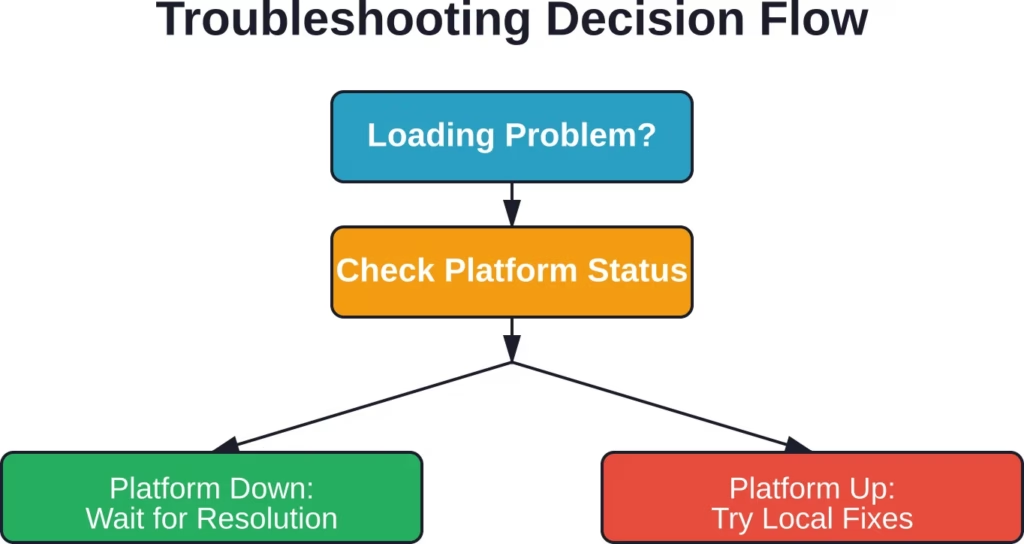
Before troubleshooting your device or connection, verify whether Character AI itself is experiencing platform-wide issues.
Visit third-party status monitoring websites that track Character AI uptime. These services ping the platform’s servers continuously and report current availability. Downdetector and similar platforms aggregate user reports to identify outages in real-time.
Check Character AI’s official social media accounts. The team typically posts acknowledgments of known issues and estimated resolution timeframes during significant outages.
Community forums like Reddit’s CharacterAI subreddit often light up with reports when the platform goes down. If dozens of users simultaneously report identical loading problems, the issue likely sits on Character AI’s end rather than yours.
Real talk: if the platform is genuinely down, no amount of troubleshooting on your device will fix it. Save yourself the frustration and wait for official confirmation that services have been restored.
First-Line Solutions That Actually Work
These basic fixes resolve the majority of loading problems. Start here before moving to advanced troubleshooting.
Clear Your Browser Cache and Cookies
This solution addresses corrupted cached data that prevents proper loading. Each browser handles this differently, but the concept remains identical.
For Chrome, click the three-dot menu, navigate to Settings, then Privacy and Security. Select Clear Browsing Data, choose Cached Images and Files plus Cookies and Other Site Data, and specify All Time for the time range.
Firefox users should click the menu button, select Settings, then Privacy & Security. Scroll to Cookies and Site Data and click Clear Data.
Safari on Mac requires opening Preferences, clicking Privacy, and selecting Manage Website Data before clicking Remove All.
After clearing, completely close and reopen your browser—don’t just refresh the tab. This ensures the browser doesn’t reload old cached data from memory.
Check Your Internet Connection
Run a speed test to verify your connection provides adequate bandwidth. Character AI generally requires at least 3-5 Mbps for smooth operation.
If speeds fall below this threshold, other devices or applications may be consuming bandwidth. Close unnecessary programs, pause downloads, or disconnect other devices from your network temporarily.
Try switching from WiFi to mobile data or vice versa. This quickly identifies whether the problem stems from a specific network.
Restart your router by unplugging it for 30 seconds before reconnecting power. This clears the router’s cache and often resolves DNS and connection stability issues.
Update Your App or Browser
Mobile app users should visit their device’s app store and check for Character AI updates. Install any available updates, as these often include fixes for loading problems.
Browser users should verify they’re running the latest version. Chrome and Firefox typically auto-update, but manual checks ensure you haven’t missed a critical update.
Check for operating system updates as well. Outdated OS versions sometimes lack security certificates or protocols that modern web applications require.
Disable VPNs and Ad Blockers Temporarily
VPN connections sometimes route traffic through congested servers or use IP addresses that Character AI’s security systems flag as suspicious.
Disconnect your VPN temporarily and attempt to load Character AI. If this resolves the problem, try connecting to a different VPN server location.
Ad blockers and privacy extensions like uBlock Origin or Privacy Badger occasionally block scripts essential for loading. Disable these extensions specifically for character.ai and test again.
Most browsers allow site-specific extension controls—you don’t need to disable protection globally, just for Character AI’s domain.
Advanced Troubleshooting Techniques
When basic solutions fail, these deeper interventions address more complex problems.
Switch Browsers Completely
Browser-specific bugs or extension conflicts sometimes cause loading failures that persist despite cache clearing.
If you normally use Chrome, try Firefox or Edge. If Safari is your default, test with Chrome. This quickly isolates whether the problem is browser-specific.
According to community feedback, some users report incognito or private browsing modes help, though others report no difference. The inconsistency suggests browser-specific extension or cache issues.
Check DNS Settings
DNS resolution problems prevent your device from locating Character AI’s servers. Switching to public DNS servers often resolves this.
Google’s Public DNS (8.8.8.8 and 8.8.4.4) and Cloudflare’s DNS (1.1.1.1 and 1.0.0.1) provide reliable alternatives to your ISP’s default DNS.
On Windows, access Network Settings, click Change Adapter Options, right-click your connection, select Properties, choose Internet Protocol Version 4, and enter DNS addresses manually.
Mac users should open System Preferences, click Network, select their connection, click Advanced, navigate to the DNS tab, and add new DNS servers.
After changing DNS settings, flush your DNS cache. Windows users can run “ipconfig /flushdns” in Command Prompt. Mac users execute “sudo dscacheutil -flushcache” in Terminal.
Reinstall the Mobile App
Corrupted app installations sometimes persist through standard updates. Complete removal and reinstallation provides a clean slate.
Before uninstalling, verify that your account data syncs to Character AI’s servers—conversations should persist after reinstallation since they’re stored server-side.
Delete the app completely, restart your device, then download a fresh copy from your app store. This eliminates corrupted local files that updates don’t replace.
Adjust Firewall and Antivirus Settings
Overzealous security software occasionally blocks Character AI’s connections, interpreting legitimate traffic as suspicious.
Check your firewall logs for blocked connections to character.ai domains. If you find entries, add Character AI to your firewall’s allowed list.
Antivirus programs with web protection features sometimes interfere with loading. Temporarily disable web shields and test—if this resolves the problem, configure an exception for Character AI rather than leaving protection disabled.
Platform-Specific Solutions
Different devices and platforms require tailored approaches.
Mobile Device Fixes
iOS users should check Settings to ensure Character AI has necessary permissions enabled, particularly for network access. Navigate to Settings, find Character AI in the app list, and verify permissions.
Background App Refresh affects how apps maintain connections. Enabling this for Character AI can improve loading reliability.
Low storage space causes apps to malfunction. If your device storage exceeds 90% capacity, free up space by deleting unused apps or media files.
Android users should check Data Saver settings, which can restrict background data for apps. Whitelist Character AI to ensure it receives necessary network access.
Desktop Browser Optimization
Hardware acceleration in browsers sometimes conflicts with web applications. Try disabling it in browser settings—it’s typically found under Advanced or System settings.
Browser profiles occasionally become corrupted. Create a new browser profile and test Character AI there. If it works, the old profile contained problematic data.
Third-party cookie blocking prevents session management. Ensure character.ai is allowed to set cookies, even if you’ve enabled aggressive privacy settings.
When Nothing Works: Alternative Access Methods
Sometimes the primary access method remains broken despite exhaustive troubleshooting.
If the mobile app won’t load, try accessing Character AI through your mobile browser instead. The web version provides identical functionality.
Conversely, if browser access fails, the mobile app might work. The platforms use slightly different infrastructure, and one may remain accessible when the other doesn’t.
Different networks sometimes have better routing to Character AI’s servers. Trying a completely different internet connection—switching from home WiFi to mobile data, or visiting a friend’s network—can reveal network-specific routing issues.
Try a Faster Way to Browse Content You Want

Character AI loading issues often come from server traffic, moderation systems, or live chat processing. R34.app works through direct tag-based browsing instead of real-time conversations, creating a simpler and faster experience.
Browse Without Waiting on Chats
With R34.app, you can:
- Open results without waiting on responses
- Move between tags without restarting
- Browse through connected content faster
- Explore without chat-based delays
👉Go to R34.app and browse NSFW content without waiting on slow chat systems.
Preventing Future Loading Problems
Proactive maintenance reduces the frequency of loading issues.
Clear your browser cache weekly rather than waiting for problems to develop. This prevents the accumulation of corrupted data that causes loading failures.
Keep apps and browsers updated automatically. Enable auto-update features to ensure you’re always running compatible versions.
Monitor Character AI’s official communication channels. Following their social media or joining community forums provides early warning of known issues and planned maintenance.
Use a stable internet connection whenever possible. Inconsistent connections—like congested public WiFi—increase the likelihood of incomplete loading sequences that corrupt local data.
| Solution | Success Rate | Time Required | Technical Level |
|---|---|---|---|
| Clear browser cache | High | 2-3 minutes | Beginner |
| Check internet connection | High | 5 minutes | Beginner |
| Update app/browser | High | 3-5 minutes | Beginner |
| Disable VPN/ad blockers | Medium | 1-2 minutes | Beginner |
| Switch browsers | Medium | 2 minutes | Beginner |
| Change DNS settings | Medium | 5-10 minutes | Intermediate |
| Reinstall app | Medium | 5-10 minutes | Beginner |
| Configure firewall | Low | 10-15 minutes | Advanced |
Understanding Error Messages
Character AI displays various error messages when loading fails. Decoding these helps target solutions effectively.
“Connection timed out” indicates network problems—either your internet connection is too slow, unstable, or routing to Character AI’s servers is failing. Focus on network troubleshooting and DNS changes.
“Server error” or 500-series errors point to problems on Character AI’s end. These typically resolve without user intervention once the platform addresses the underlying issue.
“Access denied” or authentication errors suggest session token problems. Clearing cookies and logging in fresh usually resolves these.
Generic “Something went wrong” messages are frustratingly vague but often indicate browser compatibility issues or extension conflicts. Try a different browser or disable extensions.
Community-Reported Workarounds
User discussions reveal several unofficial solutions that work for some people.
Some users report success by changing their device’s system time. Incorrect system time can cause SSL certificate validation failures. Ensure your device uses automatic time settings.
Some community members report that rapidly refreshing the page occasionally helps during high-traffic periods, though this is not an officially recommended solution.
While some users report accessing alternative URLs, only use official Character AI domains to ensure security and account safety.
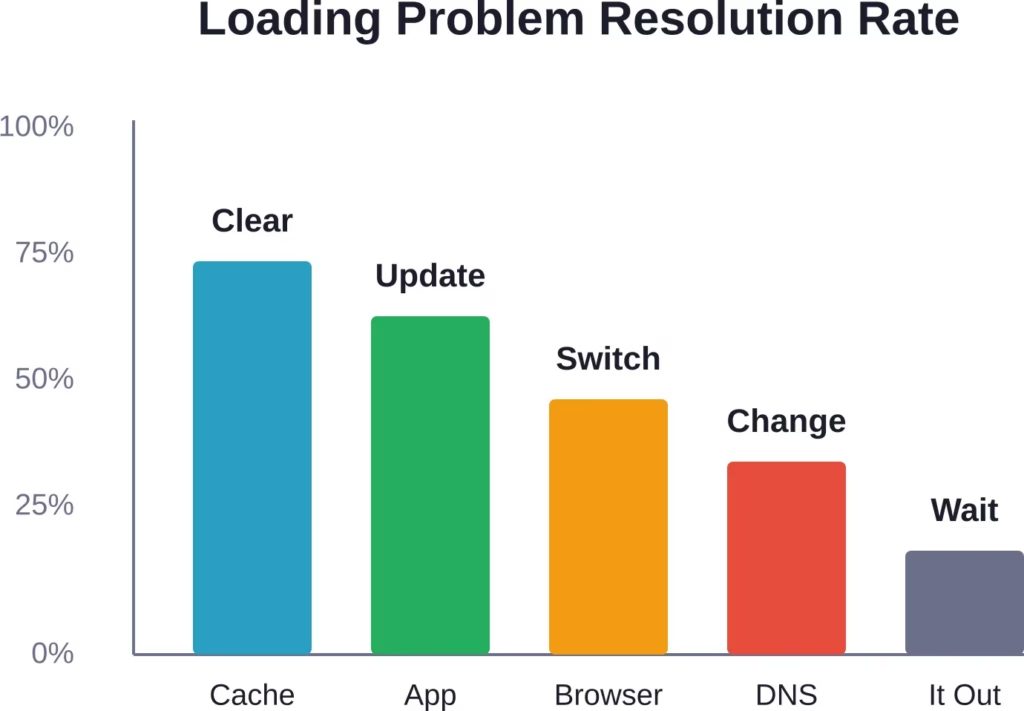
Waiting 10-15 minutes and trying again resolves issues more often than you’d expect. Temporary server hiccups, brief network disruptions, or rate limiting can cause transient loading failures that naturally resolve.
What Character AI Is Doing About Loading Issues
The platform’s November 2024 roadmap demonstrates commitment to infrastructure improvements.
The 85% reduction in outages from the previous year represents significant progress. Further reductions remain a stated priority, with focus on strengthening server stability to minimize waiting rooms and interruptions.
Automated monitoring systems can alert administrators when CPU utilization exceeds 80%, enabling preemptive intervention before users experience problems.
The roadmap emphasizes transparency about ongoing improvements and acknowledges that the platform periodically changes policies and infrastructure to maintain that balance between engagement, immersion, and reliability.
Frequently Asked Questions
Why does Character AI get stuck on the loading screen?
Character AI gets stuck loading due to corrupted browser cache, server overload during peak hours, or network connectivity issues. Clear your browser cache and cookies, verify your internet connection is stable, and check if the platform is experiencing widespread outages through status monitoring sites. If the problem persists, try accessing Character AI through a different browser or switch from WiFi to mobile data.
How long do Character AI outages typically last?
Most Character AI outages resolve within 30 minutes to 2 hours. The platform achieved an 85% reduction in outages from the previous year and maintains automated monitoring systems that alert administrators when issues arise. Major outages affecting all users are rare—localized loading problems caused by individual network or device issues occur more frequently than platform-wide downtime.
Does clearing cache delete my Character AI conversations?
No, clearing browser cache and cookies does not delete your Character AI conversations. Chats are stored on Character AI’s servers and linked to your account, not stored locally on your device. After clearing cache and logging back in, all your previous conversations will still be accessible. Only deleting your Character AI account itself would permanently remove conversation history.
Why does Character AI work on my phone but not my computer?
Platform-specific differences in how mobile apps and web browsers handle connections can cause this. Browser extensions—particularly ad blockers, privacy tools, or security software—often interfere with the web version while mobile apps remain unaffected. Try accessing Character AI through your mobile browser rather than the app to isolate whether it’s a device issue or specifically an app versus web platform issue. Clearing browser cache or trying a different browser typically resolves this discrepancy.
Can VPNs cause Character AI loading problems?
Yes, VPNs frequently cause Character AI loading issues. VPN servers may route traffic through congested pathways, introduce latency that disrupts real-time chat functionality, or use IP addresses flagged by Character AI’s security systems. Disconnect your VPN temporarily and test whether Character AI loads properly. If VPN usage is necessary, try connecting to different server locations—servers geographically closer to Character AI’s infrastructure typically perform better.
What should I do if Character AI loads but chats won’t appear?
When the platform loads but specific chats fail to appear, the issue typically involves corrupted local session data or temporary server synchronization problems. Log out completely, clear browser cookies, and log back in to establish a fresh session. If specific chats remain missing while others load normally, the problem may affect those particular conversation threads on the server side—wait 15-30 minutes and check again, as these issues usually self-resolve.
Why does Character AI load slowly even with fast internet?
Slow loading despite adequate internet speed indicates either server-side processing delays, DNS resolution problems, or inefficient routing between your network and Character AI’s servers. Try changing DNS settings to Google Public DNS or Cloudflare DNS to improve routing efficiency. Browser issues like excessive cached data, too many open tabs consuming memory, or resource-intensive extensions can also slow loading regardless of connection speed. Close unnecessary tabs and disable extensions temporarily to test whether performance improves.
Conclusion
Character AI loading problems stem from predictable causes—server capacity during peak usage, corrupted browser cache, network connectivity issues, or outdated applications. Most issues resolve through straightforward troubleshooting: clearing cache, verifying internet stability, updating software, or switching browsers.
The platform’s infrastructure continues improving, with an 85% reduction in outages demonstrating measurable progress toward reliability. But no online service achieves perfect uptime, and understanding how to diagnose and fix loading problems saves frustration when issues inevitably occur.
Start with the simplest solutions first. Check whether Character AI is experiencing platform-wide problems before spending time troubleshooting your device. Clear cache and cookies, verify your connection, and ensure your app or browser runs the latest version.
When basic fixes fail, advanced techniques like DNS changes, browser switching, or complete app reinstallation typically identify and resolve persistent problems.
Bookmark Character AI’s official social media channels and join community forums to stay informed about known issues. Proactive monitoring prevents wasted troubleshooting effort when the problem sits on Character AI’s end rather than yours.
Got loading problems right now? Start with clearing your browser cache—it’s the highest-success, lowest-effort fix that resolves most issues within minutes. Your conversations are waiting.