
Quick Summary: To manage characters in Character.AI, navigate to the character’s profile page. In 2026, Character.AI added a native Delete button for characters you’ve created in the Advanced Settings menu. This process applies only to characters you’ve created yourself—you cannot delete characters made by other users.
Character.AI lets users create and chat with custom AI personalities, but managing these characters sometimes means removing ones that no longer serve a purpose. Whether cleaning up old experiments or streamlining the character list, the process is straightforward once the steps are clear.
Here’s the thing though—Character.AI doesn’t allow deletion of characters created by other users. The platform only permits removal of characters from the original creator’s account.
Understanding Character Management in Character.AI
The platform maintains strict control over who can manage what. Only the original creator can manage or delete their own characters.
In 2026, Character.AI introduced a native Delete button for characters you’ve created. However, full deletion from the servers is not always guaranteed. You can also make characters private or overwrite them with placeholder text. Once deleted, hidden, or overwritten, the character will no longer appear on your profile, and in most cases cannot be fully recovered to its original state.
Step-by-Step Character Management Process (Delete, Hide or Overwrite)
The management process is largely the same on mobile and desktop, though menu locations may vary slightly.
For Mobile App Users
Open the Character.AI app and go to the character you created. Third-party characters will not show management options.
Tap the character profile, then go to Edit → Advanced Settings. If the Delete button is available, use it. If not, change the Visibility setting to Private to hide the character from public view and your main list.
For Desktop Users
Log into Character.AI through a web browser and open the character’s profile page.
Click Edit Character, then navigate to Advanced Settings. Use the Delete button if available. Alternatively, set Visibility to Private and save the changes.
| Platform | Menu Location | Recommended Action |
| Mobile App | Edit → Advanced Settings | Delete (if available) or set to Private |
| Desktop Web | Edit Character → Advanced Settings | Delete (if available) or set to Private |
| Both | Settings area | Save Changes |
What Happens After Deleting, Hiding or Overwriting
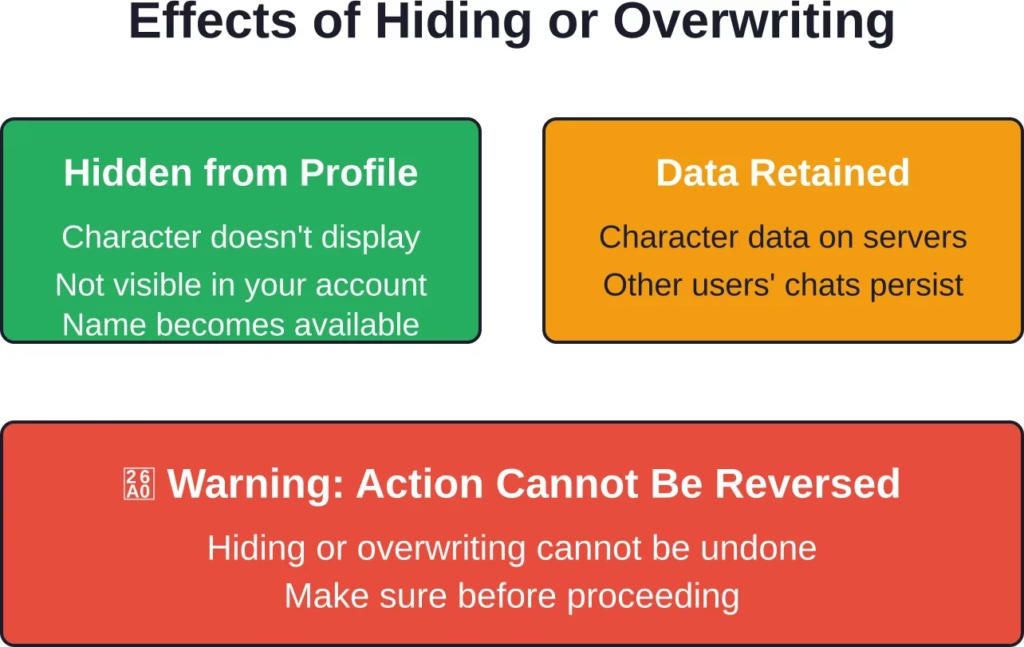
If you use the Delete button, the character is removed from your account. If you only hide it by setting visibility to private or overwrite its data, it will also disappear from your profile. However, some character data may still remain on Character.AI servers.
Hiding or deleting a character does not remove it from other users’ chat histories. Any previous conversations with that character will remain in their accounts as archived chats.
The character name may become available for reuse by other users after it has been hidden or deleted.
Move Beyond Old Character AI Chats

Deleting characters and clearing old chats won’t change the limits of the platform itself. If you want a more direct way to explore character-based NSFW content, R34.app gives you one place to search tags, open results, and keep browsing without dealing with chat management or platform restrictions.
Start Fresh and Explore What You Want
With R34.app, everything is easier to access:
- No chat cleanup or character management
- Direct browsing without setup steps
- Faster access to tagged content
- More control over what you open
Go to R34.app and start exploring without extra steps.
Common Issues and Troubleshooting
Some users report not seeing the visibility settings or the Delete button in their menu. This usually happens when trying to manage a character created by another user — the platform only allows management of characters you created yourself.
If the settings menu or Delete button doesn’t appear:
- Make sure you are editing a character you personally created.
- Try refreshing the page, updating the app, or switching between mobile and desktop versions.
- The Delete button is located in Edit Character → Advanced Settings (scroll to the bottom).
For persistent issues, visit the official Character.AI Help Center at support.character.ai.
Frequently Asked Questions
Can I recover a hidden or deleted character?
No. Once you delete a character using the Delete button or heavily overwrite it, the action cannot be reversed. The character cannot be restored to its original state.
Why can’t I delete someone else’s character?
Character.AI restricts management permissions to the original creator for privacy and security reasons. You can only manage or delete characters you’ve personally created.
Will deleting or hiding a character remove it from other users’ chat histories?
No. Other users who previously chatted with the character will still retain those conversations in their own chat archives.
How long does the process take?
Deleting or hiding a character is usually immediate. The character disappears from your profile within seconds, though cached data may briefly remain in browsers.
Can I hide or delete multiple characters at once?
No. Character.AI does not offer a bulk delete feature. You must manage each character individually.
What happens to my chats after deleting or hiding a character?
The associated chat history will no longer appear on your profile, but Character.AI may still retain the data on its servers.
Does hiding or deleting a character affect my account standing?
No. These actions have no impact on your account status, reputation, or access to platform features.
Final Thoughts
In 2026, managing characters in Character.AI includes using the Delete button in Advanced Settings for your own creations. If the Delete option is not available, the most effective alternatives are setting the character to Private or overwriting its details with placeholder text.
Only the original creator can delete or manage their characters. Before taking any action, consider backing up important conversations or character details, as deletion and heavy overwriting are permanent.
Regular cleanup of old characters helps keep your profile organized and easier to navigate.
Visit the official Character.AI platform to manage your characters through the settings menu.